Connect your agent
SCMotif works through the agent you already use. Connect it once, and it can read your data, build and run workflows, and put the answer in front of you. SCMotif does the modelling underneath.
Every connection uses the same address:
https://demo.scmotif.com/api/mcp
There is no key to generate and nothing to paste. When you connect, your browser opens on SCMotif, and a consent screen asks what the agent may reach and whether it may write. Press Allow and the agent is connected. The credential goes to the agent and is never shown to you.
What the consent screen asks
What it can reach. My whole workspace is the default. It includes projects you have not created yet, so a new project needs no reconnection. Only the projects I pick, offered once you have a project, limits the agent to the projects you choose. A project you create later is not among them until you add it under Settings. A project the agent creates is the exception: it is added to the agent's projects at once, so the agent can work in it straight away. Nothing else is added.
What it can do. Read only lets the agent explore and analyse; it changes nothing. Read and write lets it build and change workflows, dashboards and data. A read-only agent is not shown the writing tools at all — they are absent from its list rather than refused when it calls one.
Change or withdraw access
Settings lists every agent you have connected: its name, whether it may read only or read and write, and whether it reaches your whole workspace or only the projects you picked.
- Edit access changes either answer without reconnecting. Widen a narrowed connection to a project you created since, or to the whole workspace. A change to which projects a narrowed connection reaches applies on the agent's next request. Any other change applies the next time the agent's credential renews, within an hour. If the change adds writing tools, start a new conversation or reconnect the agent after that to see them.
- Revoke ends the connection. The agent's credential stops working at once. Connecting it again asks for your consent afresh.
Removing SCMotif in the agent, such as removing the connector in Claude or
running claude mcp remove scmotif in Claude Code, does not end the
connection in SCMotif: it stays listed in Settings with the access you
gave it. Use Revoke to end it. If you connect an agent again,
Settings can list the new connection next to the earlier one; revoke the
one you no longer use.
Claude
In Claude on the web or in the desktop app:
- Open Customize, then Connectors.
- Choose + Add, then Add custom connector.
-
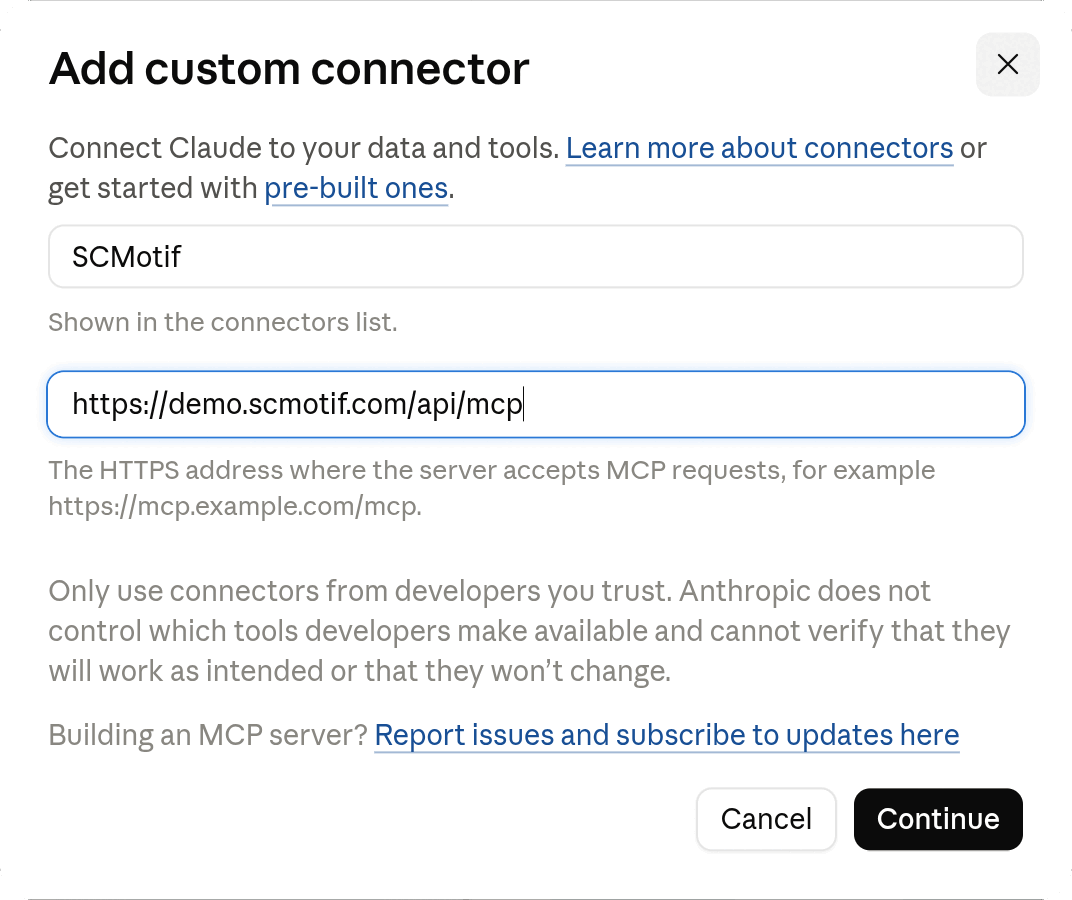
The dialog has two fields. Enter a name, for example SCMotif, in the first, Name, and the address above in the second, MCP server URL. Press Continue.
-
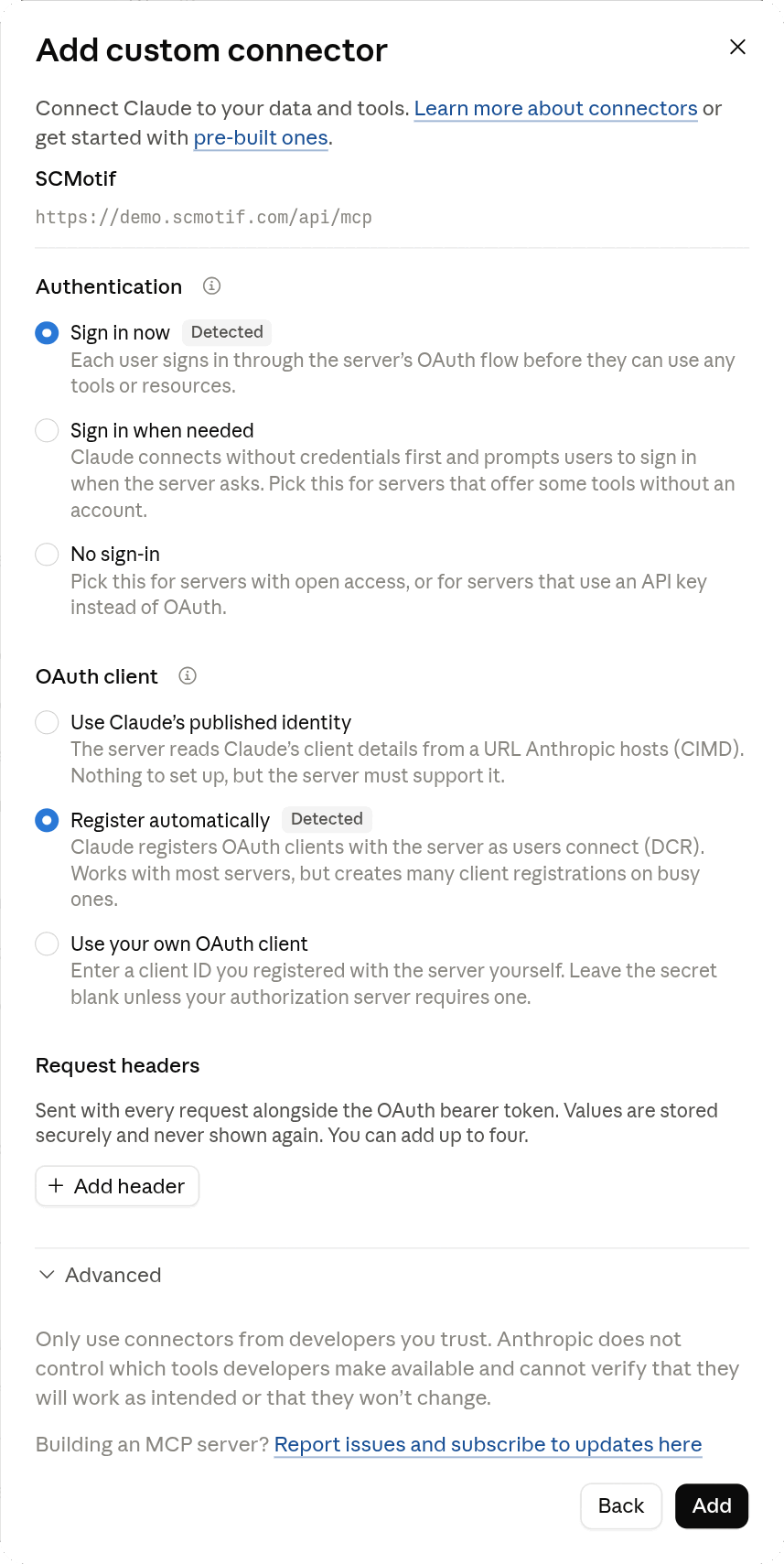
Claude checks the address and selects the answers for you: Sign in now under Authentication and Register automatically under OAuth client, each marked Detected. Leave them as they are. There is no client ID to enter, and Request headers and Advanced stay empty.
-
Press Add, then Connect. Your browser opens on SCMotif. Choose what the agent may reach, and press Allow.
- In a chat, press +, open Connectors, and check that SCMotif is turned on.
On a Team or Enterprise plan, an Owner adds the connector under Organization settings, then Connectors. Each member then finds it under Customize, then Connectors, and presses Connect.
Cowork uses the same connector. Once it is added to your Claude account, a Cowork task can call SCMotif like any other tool.
ChatGPT
In ChatGPT on the web:
- Open ChatGPT's Plugins page.
- Press Add, then Add custom MCP server.
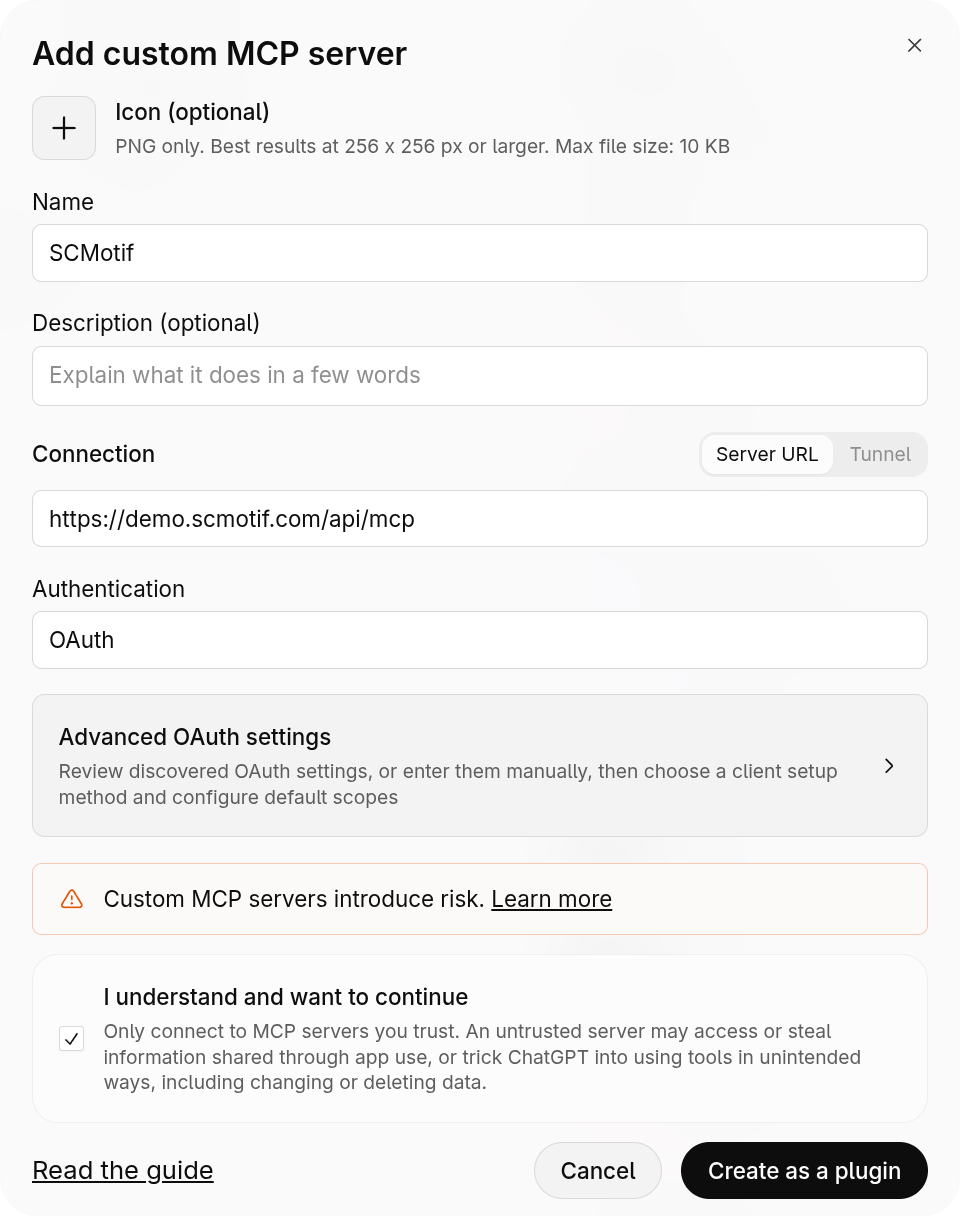
- Enter a name, for example SCMotif, under Name. Under Connection, keep Server URL selected and enter the address above. Under Authentication, choose OAuth. Leave Advanced OAuth settings as they are: ChatGPT registers itself with SCMotif, so there is no client ID to enter.
-
Read the risk warning, tick I understand and want to continue, then press Create as a plugin.
-
The plugin is listed on the Plugins page under Personal, then Created by you. Press + next to it, then Connect SCMotif. Your browser opens on SCMotif. Choose what the agent may reach, and press Allow.
- In a chat, type @ in the prompt box and pick SCMotif.
In a workspace, the admin's settings decide whether members may add a custom MCP server. If the option is missing, ask your admin.
Claude Code
From the directory you want to work in:
claude mcp add --transport http scmotif https://demo.scmotif.com/api/mcp
Claude Code lists SCMotif as needing authentication until you sign in. Run
/mcp inside Claude Code, choose SCMotif, and authenticate, or run
claude mcp login scmotif from your shell. Your browser opens on SCMotif.
Press Allow, and /mcp then lists the connection and the tools it was
granted.
Ask something
Talk to your agent normally. It reads the tool descriptions and works out which calls to make.
"Look at my SCMotif project called Demo: European Wine & Spirits. What does its network cost, and where does the money go?"
"Here's a spreadsheet of our lanes. Load it into SCMotif, check it makes sense, and tell me what's wrong with it before we model anything."
"Run Optimize Network in Demo: European Wine & Spirits again and show me what changed against the Baseline."
The agent finds its way around your projects, looks at the data and scenarios they hold, builds a workflow, runs it, and reads the answer back to you. If it gets something wrong, SCMotif rejects the call with a diagnostic that says what is wrong, why, and how to fix it. The agent repairs the call and tries again.
Everything it builds stays. Workflows are saved by name in your project, and each scenario keeps its earlier versions. "Run it again with the new numbers" is one sentence next month.
Upload a file
When you give your agent a spreadsheet, it does not paste the file into the
conversation. It sends the file straight to SCMotif's file storage at
objects.scmotif.com. Whether it can depends on where the agent runs.
Claude on the web, in the desktop app and in Cowork sends the file from Anthropic's servers, which reach only the addresses Claude's settings allow:
- On a Free, Pro or Max plan, open Settings, then Capabilities, and turn on Allow network egress.
- On a Team or Enterprise plan, an Owner opens Organization settings,
then Capabilities, and turns on Allow network egress. Allow
package managers and specific domains, and add
objects.scmotif.comto the domains; or allow all domains.
ChatGPT cannot send a file on to another service. Upload the file in the app instead.
Claude Code, and any agent that runs on your own computer, reaches
objects.scmotif.com like any website. There is nothing to set.
Upload in the app instead
When an agent's upload is blocked, the agent gives you a link to the project's Data Sources page. Press Upload Files and choose the same file, under the same name. That finishes the upload the agent started, and the agent carries on with it. This works with every agent and needs no setting.
Some agents cannot send a file at all, such as Claude with network egress off. That agent gives you the same link before it starts, creating the project first if the work needs a new one. Upload the files there, and the agent carries on once they appear.
Download a file
When your agent needs a whole file from a project, such as a data source or
a scenario, SCMotif gives it a short-lived link to the file at
objects.scmotif.com, the same file storage an upload goes to. The agent
fetches the file from where it runs, so the setting that lets an upload
through also lets a download through:
- Claude on the web, in the desktop app and in Cowork needs Allow
network egress, with
objects.scmotif.comallowed, as Upload a file describes. - ChatGPT cannot fetch a file from another service. Download it in the app instead, from the project's Data Sources or Scenarios page.
- Claude Code, and any agent that runs on your own computer, needs nothing.
Without the file, an agent can still look at a sample of a data source's rows and do its analysis in a workflow. If you would rather it had the whole file, change the setting and ask it to try again.
See it in the app
Open demo.scmotif.com to see your projects, the data you uploaded, the workflows on a canvas, and any dashboard the agent deployed. The agent and the app work on the same data, so what the agent did is what you see. Every node on the canvas has a page in the node reference.
Troubleshooting
Each entry names what you see, why it happens, and what to do.
Writing tools are missing
Cause: the connection was granted read only. The agent sees every tool that reads, and none that writes.
What to do: if you only need to read, nothing. Otherwise open Settings in SCMotif, choose Edit access on the agent, and pick Read and write. Once the agent's credential renews, start a new conversation or reconnect the agent to see the writing tools.
The agent says SCMotif needs authentication
In Claude Code, /mcp shows Needs authentication next to SCMotif.
Cause: the connection was revoked in Settings, or the agent's credential expired and could not be renewed.
What to do: connect again from the agent: from the connector or plugin
settings in Claude or ChatGPT, or with /mcp in Claude Code. Press
Allow when your browser opens on SCMotif.
The agent says a project does not exist
Cause: the connection covers only the projects you chose on the consent screen, and this project is not one of them.
What to do: open Settings in SCMotif, choose Edit access on the agent, and either tick the project or choose My whole workspace. The agent reaches it once its credential renews.
The agent cannot upload or download a file
The agent says its upload or download was refused or could not connect. It may offer to use a copy of the file from another project, or to work from a preview of the rows instead of the whole file.
Cause: the agent sends and fetches files from a place that is not allowed
to reach objects.scmotif.com. SCMotif never receives the request, so it
cannot answer it.
What to do: allow objects.scmotif.com in your agent's settings, as
Upload a file describes for each agent, then ask the agent
to try again. For an upload, you can instead open the link the agent gives
you and upload the same file in the app.
A call is answered with a diagnostic
Cause: the call was wrong in a way SCMotif can name, such as a missing field or a step wired in the wrong order.
What to do: nothing. The message says what to change, and the agent repairs the call and tries again.